How to Schedule Focus Time on iPhone
You blocked out two quiet hours for real work, and the phone buzzed in the first ten minutes anyway. Here is how to make the iPhone protect that time on its own, every day, without you having to remember to switch anything on.
 Rise is an iPhone appPoint your iPhone camera at the code to install it.
or text me the link
Yes: give a Focus a schedule
Yes. On iPhone, focus time is a Focus, the feature that filters notifications, and any Focus can turn itself on by schedule. Open Settings, tap Focus, tap the Focus you want (Work, Do Not Disturb, or one you made), then tap Add Schedule and choose the times, a location, or an app that should switch it on. From then on, the iPhone silences everything you did not allow during that window, with no tap from you.
The steps on this page are for iOS 27, the current version, and match Apple's own iPhone User Guide. Focus arrived in iOS 15, when Apple described the Work Focus as something you could set for work hours.
Two things a schedule does not do: it does not start a timer, and it does not make you sit down and begin. If the quiet window keeps arriving while you are still in bed or in your inbox, the problem is the start, not the schedule (see Step 6).
| You want | Use | Section |
|---|---|---|
| Quiet hours every workday | A time schedule | Step 2 |
| Quiet as soon as you reach the office or library | A location schedule | Step 2 |
| A one-off block right now | Control Center | Step 4 |
| The schedule stopped working | Fixes | Step 5 |
| A block that starts when you wake | Alarm plus timer | Step 6 |
Step 1: Pick the Focus and decide who gets through
A schedule only switches a Focus on. What the Focus actually blocks is set in the Focus itself, so do this part first.
- Open Settings and tap Focus.
- Tap an existing Focus such as Work or Do Not Disturb, or tap the add button to create a custom one. A custom Focus named after the block ("Deep work", "Study", "Morning") makes it obvious in the status bar what the time is for.
- Under people, choose who can still reach you. Under apps, choose which apps can still send notifications.
- Decide on Time Sensitive Notifications. Apple describes it as a setting that lets all apps send time-sensitive notifications immediately. Leave it on if you rely on delivery or appointment alerts; turn it off for the strictest quiet.
Do not allow nobody. In a randomized field experiment with 237 smartphone users, published in Computers in Human Behavior in 2019, people who got no notifications at all gained fewer of these benefits than the batched group and reported more anxiety and fear of missing out. The group whose notifications were held and delivered three times a day felt more attentive, more productive and more in control of their phones. A short allowed list (family, the one colleague who truly needs you) keeps a Focus you will actually leave on.
Step 2: Add the schedule
These are Apple's steps for iOS 27:
- Go to Settings.
- Tap Focus, then tap the Focus you want to schedule.
- Tap Add Schedule.
- Choose what should turn it on: a time, a location, or an app.
- Set the details, for example 9:00 to 11:00 for a time, or your office address for a location.
Which trigger to pick depends on how regular your day is:
- Time suits a fixed block, such as the first two hours of every workday. It is the most predictable: the Focus turns on whether you are ready or not.
- Location suits a place that means work: a desk at the office, a library, a studio. It follows you, not the clock, which helps if your hours move around.
- App suits a tool you only open for deep work, such as a writing app. The Focus comes on with the app.
The Sleep Focus is the exception to all of this: Apple says it follows the sleep schedule you set in the Health app, so change bedtime and wake time there, not in Focus settings.
Step 3: Make the phone look different during focus time
Silencing notifications helps, but the apps on the Home Screen still invite you in. Apple lets you link a Focus to its own Lock Screen and Home Screen page, so when the schedule switches the Focus on, the phone switches to a screen with only the apps that belong to that work. In the same Focus settings you can also turn on dimming of the Lock Screen while the Focus is on, and add Focus filters, which change how apps behave during the Focus, such as which calendar or mail account they show.
Why bother with all three? A 2015 study in the Journal of Experimental Psychology: Human Perception and Performance found that phone notifications alone significantly disrupted performance on an attention-demanding task, even when people did not touch the phone, and the size of the effect was comparable to making a call or sending a text. Each buzz you remove is a small interruption you do not pay for. If the hardest pull is the phone itself first thing in the day, how to stop checking your phone in the morning covers that part.
Step 4: Turn focus time on right now, for a set length
Not every block is regular. For a one-off session you do not need a schedule:
- Open Control Center.
- Tap Focus, then tap the Focus you want.
- To give it an end, use the options next to it, such as For 1 hour or Until I leave this location.
An end point matters. A Focus with no end stays on after the work is done, and messages you were waiting for sit silenced into the evening. If you want to see how much of the block is left, pair the Focus with a timer that shows on the Lock Screen; how to keep a focus timer on your iPhone Lock Screen explains how, and a Pomodoro timer on iPhone splits a long block into rounds with breaks.
Step 5: When scheduled focus time is not working
If the schedule seems to do nothing, or the Focus turns on and off by itself, work through these in order:
- Another Focus took over. Only one Focus runs at a time. Apple notes that if another Focus is already on, it turns off when you tap the new one. If a Sleep or Do Not Disturb schedule overlaps your work hours, the two will keep replacing each other. Make the windows not overlap.
- Another device changed it. With Share Across Devices on in Settings, Focus, a Focus set on one Apple device applies to all your devices signed in to the same Apple Account. Apple's iOS 15 announcement put it plainly: when Focus is set on one Apple device, it automatically applies to all of them. So a Focus switched on from your iPad or Mac can switch your iPhone too. Turn the switch off if you want the iPhone to follow only its own schedules.
- Filters did not follow. Apple states that Focus filters are not synced across devices, even with Share Across Devices on. Set filters on each device.
- Notifications still get through. Check the allowed people and apps for that Focus, then check Time Sensitive Notifications (see Step 1). With it on, any app can send a time-sensitive alert during the Focus.
- The location rule is unreliable. Switch that block to a time schedule. It is the most predictable trigger, because it does not depend on where the phone thinks you are.
- You are not sure it is on. Check the status bar or Lock Screen: Apple notes the Focus icon appears in both while a Focus is on.
Will alarms still ring during focus time?
The Clock app's alarms will. Apple's alarm help page says Do Not Disturb, the Ring/Silent switch and Silent mode do not affect the alarm sound. One exception worth knowing: in StandBy, haptics for alarms are disabled, so an alarm set to vibrate only is a poor choice on a charging stand. Third-party alarm apps vary. Apps built on Apple's AlarmKit framework, available since iOS 26, behave like Clock alarms: Apple's developer session on AlarmKit says the alert breaks through Silent mode and the current Focus. That means you can schedule a Sleep or Do Not Disturb Focus overnight without worrying about the wake-up.
Step 6: Tie the block to something that already happens
A scheduled Focus guards the time. It cannot make you start. The block that is easiest to lose is the first one of the day, because the day has not given you a cue yet. The simplest cue you already have is your alarm.
Rise is an alarm app built for that handoff. Here is what it does, and what it does not:
- The alarm uses AlarmKit, so it rings through Silent mode and through whatever Focus is on, and repeats every day at the time you set.
- Stopping the alarm opens a focus timer instead of the Lock Screen. You pick the length on a slider, from 5 to 120 minutes in 5-minute steps.
- The countdown runs as a Live Activity on the Lock Screen, and in the Dynamic Island on iPhones that have one, so you can see the time left without unlocking. You can pause and resume.
- Rise runs one focus session a day. If you miss the morning, a Focus now button on the Home screen starts it later.
- Rise does not switch an iPhone Focus on or off for you. Pair it with a scheduled Focus from Step 2 that starts at your alarm time.
- Alarms are free. Focus sessions come with Rise Pro, and you can try one first.
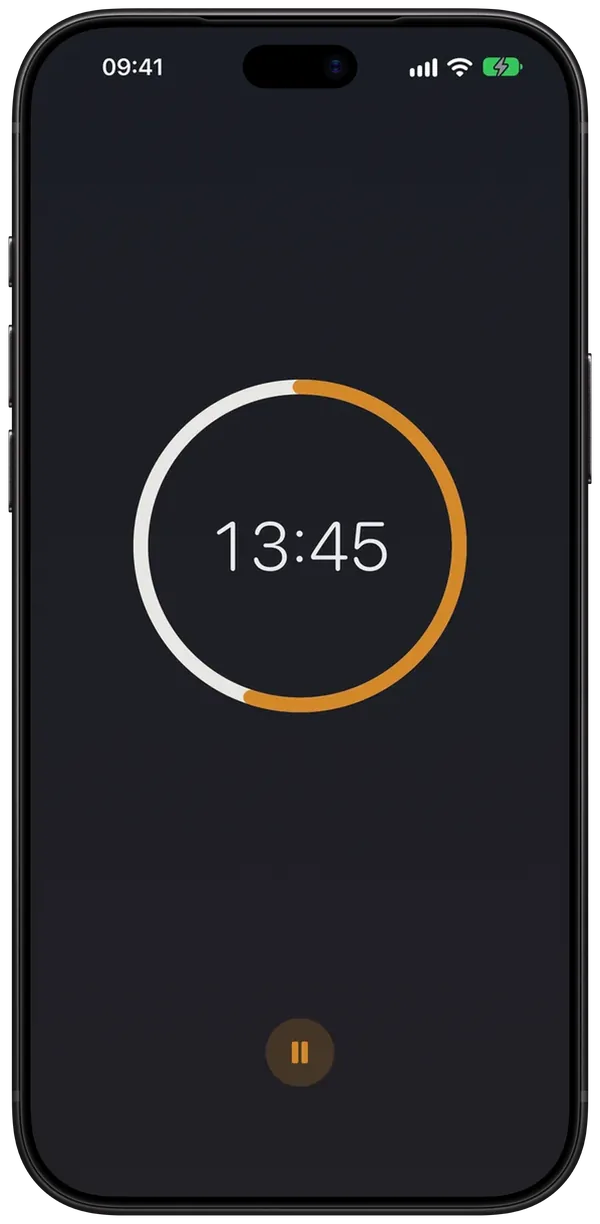
One setting to check: when the session ends, Rise sends a "Focus session complete" notification so a locked phone still tells you. If your morning Focus silences apps, add Rise to that Focus's allowed apps (Step 1) so the end of the block reaches you.
A setup to copy
- Create a custom Focus called "Deep work". Allow two people and no apps except the one you work in.
- Give it a time schedule from 7:00 to 8:30.
- Link it to a Home Screen page with only work apps, and dim the Lock Screen.
- Set your wake-up alarm for 7:00, then start a 60-minute block as soon as you are up.
- After a week, look at where it broke. If you never started, move the block, not the alarm. If messages piled up, add one person to the allowed list.
Getting the block to stick past the first week is its own skill; how to build a morning routine that sticks covers starting small and keeping a streak through bad days.
Frequently asked questions
Can you schedule focus time on iPhone?
Yes. Go to Settings, tap Focus, tap the Focus you want, then tap Add Schedule and choose the times, a location or an app that should turn it on. The Focus then switches on by itself and silences everything you did not allow.
Why is my scheduled Focus not working?
Check for an overlapping schedule first: only one Focus runs at a time, and turning on one turns off another. Then check Share Across Devices, which lets a Focus on your iPad or Mac switch your iPhone, and check whether Time Sensitive Notifications lets alerts through.
How do I turn on Focus for just one hour?
Open Control Center, tap Focus, then tap the Focus you want and choose For 1 hour. You can also choose Until I leave this location, which ends the Focus when you walk away.
Does my alarm still ring when Focus or Do Not Disturb is on?
Clock app alarms do. Apple says Do Not Disturb, the Ring/Silent switch and Silent mode do not affect the alarm sound. Alarm apps built on Apple's AlarmKit, such as Rise, also break through Silent mode and the current Focus.
Is iPhone Focus the same as focus time in a work calendar?
No. A calendar's focus time blocks a slot on your calendar, while an iPhone Focus silences notifications on the phone. To get both, give a Focus a time schedule with the same hours as the calendar block.
Sources
- Apple Support: Turn on or schedule a Focus on iPhone
- Apple Support: Set up a Focus on iPhone
- Apple Support: Allow or silence notifications for a Focus on iPhone
- Apple Support: How to set and change alarms on your iPhone
- Apple Developer: Wake up to the AlarmKit API (WWDC25)
- Apple Developer: AlarmKit documentation
- Apple Newsroom: iOS 15 is available today (Focus)
- Stothart, Mitchum and Yehnert (2015), The attentional cost of receiving a cell phone notification
- Fitz et al. (2019), Batching smartphone notifications can improve well-being, Computers in Human Behavior
- Apple: iOS 27